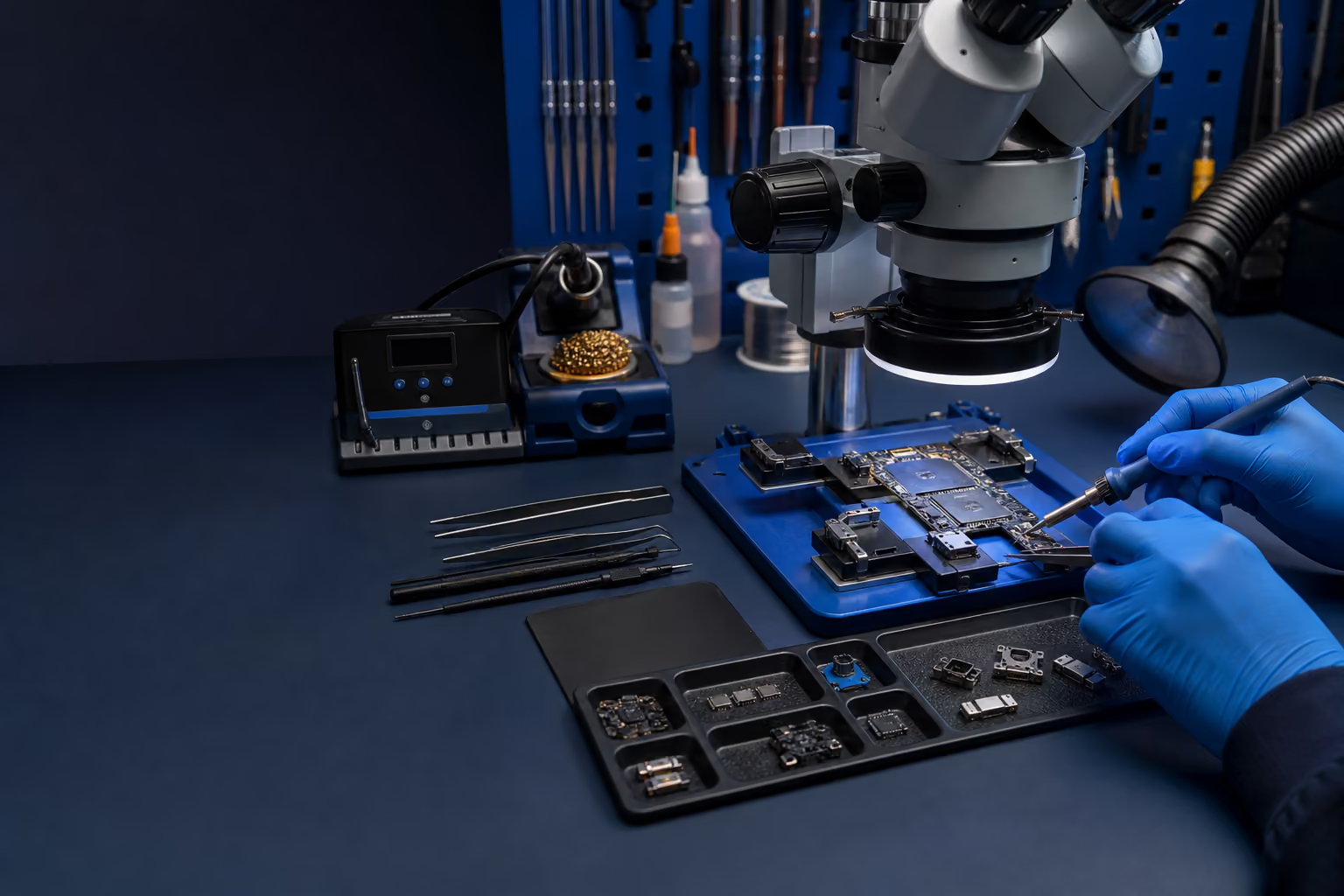
Clean without creating damage
Power the device down and unplug it first. Apply cleaner to a soft microfiber cloth, not directly to the device, and keep moisture away from ports, seams, microphones, keyboards, and speaker openings.
- Do not use a household vacuum on exposed electronics.
- Hold fan blades still when using compressed air.
- Avoid harsh chemicals, paper towels, and display pressure.
- Leave battery disconnection and heatsink removal to properly equipped service.
Heat and airflow
Restricted airflow can cause throttling, crashing, loud fans, shutdowns, and shorter component life. Keep vents clear, use computers on hard surfaces, and leave space around consoles.
- Watch for fans that grind, pulse, or stop.
- Do not operate a console inside a closed cabinet.
- Thermal compound is condition-based maintenance, not an automatic yearly service.
Battery safety
Stop using a device if the case or screen lifts, the battery smells unusual, or the device becomes abnormally hot while idle. Do not puncture, squeeze, bend, or keep charging a swollen battery.
Power and surge protection
A surge protector can reduce risk from some voltage spikes. A UPS also provides temporary battery power so computers, consoles, and storage can shut down more safely.
- Replace worn, damaged, or recalled power accessories.
- Use correctly rated chargers from reputable sources.
- Do not daisy-chain power strips or overload outlets.
Backups before repairs
Use the 3-2-1 idea for important data: three copies, on two storage types, with one copy kept off-site or isolated. Cloud synchronization alone may copy accidental deletion or ransomware changes.
- Test that important files can actually be restored.
- Back up before repair, major updates, or storage upgrades when possible.
- Do not repeatedly power a clicking or failing drive.
Protect HDMI and charging ports
Sideways cable force, moving a device while connected, and repeated blind insertion can damage a connector, its solder joints, pads, or board traces.
- Disconnect cables before moving or packing a device.
- Support heavy cables so they do not pull sideways.
- Stop if a plug feels wrong, sits loose, or works only at an angle.
Accounts and scam defense
Use a password manager, unique passwords, and multifactor authentication. Never approve a sign-in prompt you did not initiate, install remote-access software because of an unsolicited message, or pay a supposed support agent with gift cards or cryptocurrency.
- Open the official app or type the known website address yourself.
- Protect your primary email account first.
- Verify urgent requests through a separate trusted channel.
Know when to stop
Disconnect power and stop using a device after smoke, sparks, burning odor, liquid exposure, swelling, severe heat, repeated shutdowns, clicking storage, or a loose power, charging, USB, or HDMI port.
Pack it like it matters
Use a sturdy box, cushion every side, and fill empty space so the device cannot move. Protect screens, corners, thumbsticks, ports, and protruding parts.
- Power the device off and disconnect removable cables.
- Send only accessories related to the problem.
- Place the RMA information inside and keep the tracking receipt.